

Auto Switch Input Source on macOS: The Guide to Typing Faster (2026)
If you work with multiple languages on your Mac, you know the pain: you’re typing away in VS Code, switch to WeChat to reply to a message, and… your first few words come out as gibberish because you forgot to switch your input source.
This guide will show you how to permanently solve this problem with automatic input source switching.
Why Manual Switching is Killing Your Productivity
Let’s look at the numbers. If you switch between apps 50 times a day (a conservative estimate for most knowledge workers) and it takes 2 seconds each time to:
- Realize you’re in the wrong input mode
- Press the keyboard shortcut or click the menu bar
- Select the correct input source
That’s 100 seconds per day wasted—or about 10 hours per year—just switching keyboard languages.
But the real cost isn’t time. It’s context switching. Every time you have to think about your keyboard instead of your work, you lose focus.
“The average knowledge worker switches tasks every 3 minutes and takes 23 minutes to fully regain focus after an interruption.” — Gloria Mark, UC Irvine
How Automatic Input Source Switching Works
The concept is elegantly simple:
-
You define rules — For example: “When I’m in VS Code, use the ABC (English) keyboard. When I’m in WeChat, use Pinyin.”
-
The app monitors your active window — Using macOS Accessibility APIs, a utility can detect when you switch between applications.
-
The switch happens instantly — When you move to a different app, the input source changes before you even start typing.
The Technical Side
On macOS, input sources are managed by the Text Input Sources Services (TISSelectInputSource). Any app with Accessibility permissions can:
- Read the current input source
- Get a list of all enabled input sources
- Switch to a specific input source programmatically
This is exactly what InputSwitcher does—it acts as an intelligent bridge between your apps and macOS’s input system.
// Example: Switching input source programmatically
if let inputSource = TISCopyInputSourceForLanguage("zh-Hans" as CFString)?.takeRetainedValue() {
    TISSelectInputSource(inputSource)
}
Reference: Apple Text Input Source Services
Who This Guide Is Actually For
Quick fit check before you install
InputSwitcher is usually a strong fit if your day already contains all three of these patterns:
- you switch between coding, chat, and browser or document apps
- at least one app should almost always stay in English / ABC
- at least one other app should almost always return to your native language
If those patterns are already true, the fastest validation is not more research. It is testing 2-3 app rules on the apps where wrong-language typing keeps happening.
This guide is most useful if your Mac day already has stable app-language patterns such as:
- coding tools in English or ABC
- chat apps in Chinese, Japanese, Korean, or another native language
- browsers and docs switching depending on the task
- support, CRM, or admin tools that should open in the language you use with customers
If that sounds familiar, your real problem is usually not “how do I switch input sources on Mac?” It is how do I make the right input source follow the app automatically so I stop fixing mistakes all day?
Decide your next step quickly
- Download now if you already know the pain and want to test the workflow immediately on 1-3 high-friction apps.
- Read the per-app guide first if you specifically searched for how to keep a different keyboard language in each Mac app and want to see the app-based workflow before installing.
- Check features or pricing first if you already understand the workflow and are mainly deciding whether the free setup is enough or whether Pro is the cleaner fit.
Manual macOS Switching vs Per-App Automation
macOS already lets you enable multiple input sources and switch between them with a keyboard shortcut. That solves the availability problem, but not the context problem.
Built-in macOS behavior still assumes that you remember to switch at the right moment. It does not naturally keep one input source for Terminal, another for WeChat, and another for a browser or document app just because you changed apps.
Per-app automation changes the model:
- Terminal or VS Code can always return to English / ABC
- WeChat, Messages, or LINE can always return to your native language
- browsers, notes, docs, or support tools can follow the language that fits that task
That is why people searching for “set different keyboard language for each app on Mac” are usually not looking for another shortcut. They are looking for a way to make the app context decide for them.
Setting Up Your First Rules
Getting started is straightforward. Here’s a recommended setup for a typical multilingual developer:
| Application | Input Source | Reason |
|---|---|---|
| VS Code | ABC (English) | Code is written in English |
| Terminal | ABC (English) | Commands are in English |
| Slack | System Default | Depends on conversation |
| Pinyin (Chinese) | Native language | |
| Safari | System Default | Web browsing varies |
A Better Way to Think About Rule Design
Best Input Source Rules for the Most Common Mac App Stacks
If you want a practical starting point instead of generic advice, copy one of these stacks and adjust from there.
| Workflow | Apps | Default Input Source | Why This Setup Works |
|---|---|---|---|
| Developer + chat | VS Code, Terminal, WeChat, Safari | English for coding apps, native language for chat, task-based for browser | Protects code and commands while keeping replies natural |
| Support + operations | Gmail, Zendesk, Notion, admin tools | Customer-facing language for support apps, English for ops tools | Reduces wrong-language starts in customer communication |
| Research + writing | Safari, Notes, Docs, Slack | Browser/docs depend on task, chat stays conversational | Keeps reading, drafting, and collaboration from fighting each other |
The important pattern is not copying every app perfectly. It is choosing the highest-friction app stack and making that stack reliable first.
The best first setup is not “configure every app on your Mac.” It is “protect the apps where wrong-language typing costs you the most.”
A strong first batch usually looks like this:
| App Context | Typical Apps | Recommended Input | Why It Matters |
|---|---|---|---|
| Coding | VS Code, Cursor, Xcode, Terminal | English / ABC | Commands, code, filenames, and shortcuts stay predictable |
| Communication | Slack, WeChat, Telegram, Messages | Native language | Replies start in the language you actually use with people |
| Research & writing | Safari, Chrome, Notion, Notes, Docs | Task-dependent | Lets you move between reading, drafting, and searching without friction |
| Support & operations | Gmail, Zendesk, admin tools, CRMs | Customer-facing language | Reduces embarrassing wrong-language starts in operational work |
If you only want quick proof, start with two or three apps. If those first rules already remove daily friction, you will know whether the workflow fits long before you need a big setup.
Pro Tips for Rule Configuration
1. Use the Fallback Setting Wisely
Set your most-used language as the fallback. When you switch to an app without a specific rule, it will use this default.
2. Group Similar Apps
Many dev tools (VS Code, Xcode, Terminal, iTerm) should probably all use the same input source.
3. Don’t Over-Configure
You don’t need a rule for every app. Only add rules for apps where you consistently use a specific language.
Common Scenarios and Solutions
Scenario 1: The Bilingual Developer
Challenge: You code in English but communicate with Chinese clients via WeChat.
Solution:
- Set all IDEs and terminals to English
- Set communication apps (WeChat, DingTalk) to Chinese
- Leave browsers at default (you might search in either language)
Scenario 2: The International Team
Challenge: You use Slack in English for work, but switch to Japanese for personal messages.
Solution:
- Set Slack to English (your team’s language)
- Set LINE or other personal messengers to Japanese
- Consider using the global hotkey to temporarily pause auto-switching when needed
Scenario 3: The Content Creator
Challenge: You write articles in multiple languages and switch frequently within the same app.
Solution:
- Use the global hotkey (⌘⌥P) to pause auto-switching while writing
- Set your word processor to your primary writing language
- Resume auto-switching when you’re done
Compare Your Main Ways to Auto Switch Input Source on Mac
Quick fit check before you keep reading
This page matters most if your workflow already has these patterns:
- one or more coding apps that should stay in English / ABC
- one or more chat apps that should return to your native language
- repeated switching between browser, docs, notes, and messaging tools during the same day
If that already sounds like your Mac workflow, the next useful step is usually testing 2-3 app rules instead of trying to model every app at once.
If your search was closer to “what is the best way to auto switch input source on Mac?” than “how do I install one app?”, use this quick comparison:
| Option | Best For | Main Limitation |
|---|---|---|
| Native macOS shortcuts | People who only need occasional manual switching | You still have to remember to switch every time |
| Per-app automation with InputSwitcher | People who want one input source per app automatically | Needs Accessibility permission and a few minutes of rule setup |
| Script or automation hacks | Power users who enjoy maintaining custom workflows | More fragile after app updates or macOS changes |
The practical question is usually not whether macOS can switch input sources at all. It is whether your workflow needs manual recovery or automatic app-based recovery before the first wrong character appears.
The Fastest Decision Path After Reading This Guide
You do not need to map every app on day one
The fastest useful validation is usually:
- one coding app
- one chat app
- one browser, notes, or docs app
If those 3 rules already stop the most common wrong-language starts, you have enough evidence to continue without over-configuring your Mac.
Real search demand already points to this topic
These live search hints show that people are already looking for this workflow:
- input switcher: 264 impressions, CTR 6.44%, position 5.17
- inputswitcher: 34 impressions, CTR 23.53%, position 2.85
- smart language switcher: 18 impressions, CTR 5.56%, position 8.22
That means this page should help visitors decide faster whether app-based input switching solves their actual daily context switching problem.
What to do next if this workflow matches your day
- Start with one coding app and one chat app
- Add one browser, notes, or docs rule only if wrong-language starts still happen there
- Judge success by fewer false starts, not by the number of rules you created
That keeps the first validation small, realistic, and easier to trust.
If your traffic is coming from search, test the workflow on your 3 highest-friction apps first
Search visitors usually do not need a giant setup. They need proof that the workflow works in the apps where wrong-language typing actually hurts them:
- one coding or work app
- one chat app
- one browser, notes, or docs app
If those three app rules already remove the most common wrong-input starts, the setup is doing the job that searchers care about.
Most readers are already somewhere on one of these paths:
1. “I just want this fixed on my Mac today.”
Go straight to the download page, install the app, grant Accessibility permission, and create rules for the two or three apps where wrong-input mistakes happen most often.
2. “I want to see the exact per-app workflow first.”
Open the per-app input source guide. That page is the clearest explanation of how one keyboard language can follow one app while another app keeps a different default.
3. “I already know the workflow fits. I am deciding whether Free or Pro is enough.”
Go to features if you want to compare workflow depth, or pricing if your real question is whether 3 rules are enough or whether unlimited rules are the better fit.
Beyond Basic Switching: Pro Features
Once you’ve mastered basic rules, explore these advanced features:
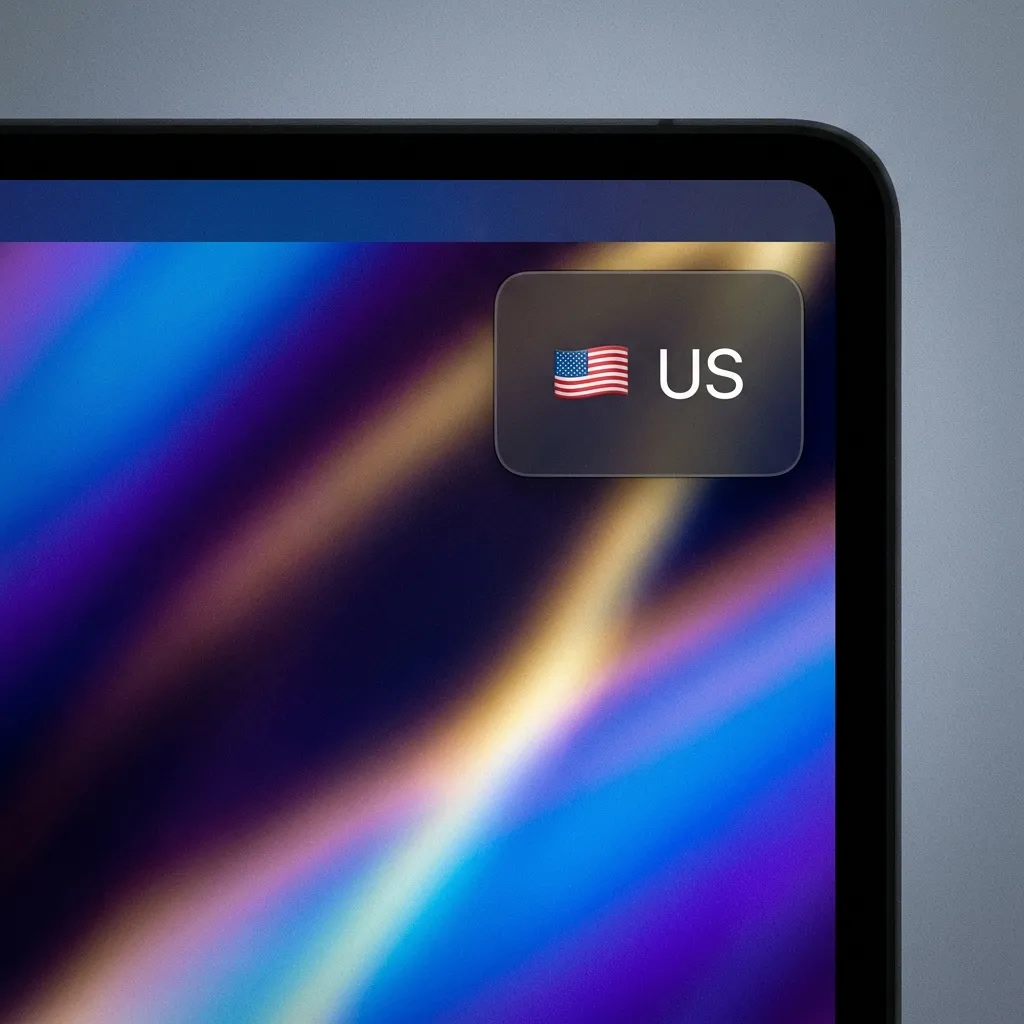
Visual Indicator
A floating indicator appears briefly when the input source changes. This gives you visual confirmation without breaking your flow.
Sound Effects
Prefer audio feedback? Enable subtle sound effects that confirm the switch without requiring you to look away from your work.
Menu Bar Flag
See your current input source at a glance with a country flag in your menu bar. No more guessing which keyboard is active.
Troubleshooting Common Issues
”The input source isn’t switching for a specific app”
- Check if the app has a rule defined
- Verify the bundle ID matches (some apps have different IDs for different versions)
- Ensure Accessibility permissions are granted
”Switching seems delayed”
- Check if another app is conflicting with the shortcut
- Restart InputSwitcher from the menu bar
- Verify macOS Accessibility permissions
”I want to pause switching temporarily”
Use the global hotkey: ⌘⌥P (Command + Option + P) to toggle auto-switching on and off.
”Can Mac remember a different keyboard language for each app by itself?”
Not reliably in the way most people mean.
macOS lets you enable multiple input sources and switch between them quickly, but it does not naturally behave like:
- VS Code always opens in English
- WeChat always opens in Chinese
- Terminal always returns to ABC
- Safari follows the language you last needed for research
That per-app memory layer is the real problem InputSwitcher is designed to solve.
”What is the fastest setup if I only want proof?”
Start with the three apps where wrong-language typing hurts most. For many readers that means:
- one coding app
- one chat app
- one browser or docs app
If those three rules already eliminate the daily mistake pattern, you have enough evidence to decide whether the workflow deserves a permanent place on your Mac.
Should You Download Now or Keep Researching?
Use this shortcut:
- Download now if you already know the pain, can name the apps where it happens, and mainly want a fast real-world test.
- Keep reading the per-app guide if your main question is still “can Mac really keep a different keyboard language per app?”
- Check pricing if you already know 3 rules may be too small for your real workflow.
- Check features if you care about visibility, pause control, import/export, or broader workflow coverage before paying.
For most qualified visitors, the fastest path is simple: test the workflow on the apps that hurt most, then decide whether broader coverage is worth the one-time upgrade.
The Bottom Line
Manual input source switching is a solved problem. With the right tool and a few minutes of setup, you can:
- ✅ Save hours of cumulative time each year
- ✅ Reduce frustration from typing in the wrong language
- ✅ Maintain focus by eliminating unnecessary context switches
Ready to try it? Download InputSwitcher and set up your first rules in under 5 minutes. If you want the clearest explanation of the app-based model first, read the per-app input source guide. If you already know your workflow is larger than a quick trial setup, compare features or go straight to pricing.
FAQ: Choosing Between This Guide, the Per-App Guide, and Download
When should I read this guide instead of the per-app page?
Read this guide if you want the bigger picture: why wrong-input typing keeps happening, how app-based switching works, and how to decide whether automation is worth it.
When should I jump straight to the per-app guide?
Open the per-app input source guide if your main question is specifically how to keep one keyboard language for one app and a different one for another app on Mac.
What should I test first after installation?
Test the first app switch that usually causes a mistake. For example:
- VS Code → WeChat
- Terminal → Slack
- Browser → Notes
If the correct input source follows that switch without manual recovery, you already have proof that the workflow is doing real work for you.
When should I skip both and just download?
Go straight to download if you already know the pain, can name the affected apps, and mainly want a fast real-world test rather than more theory.
Related Articles
Looking for more ways to optimize your multilingual workflow? Check out these in-depth guides:
-
Why You Should Stop Manually Switching Input Sources — The science behind context switching costs and how automation saves hours of productivity.
-
The Developer’s Guide to Multilingual Coding — IDE-specific tips, terminal optimizations, and Git workflow protection for developers.
-
Remote Work Productivity for Multilingual Teams — How to optimize input switching across time zones and collaboration tools.
Learn More
Want to understand how InputSwitcher works under the hood? Visit our:
- Per-app input source guide — See the exact Mac workflow for keeping one keyboard language per app
- Features Page — Explore all Pro features including visual indicators and sound effects
- Pricing Page — Decide whether Free already fits your workflow or Pro is the cleaner long-term setup
- Homepage FAQ — Answers to common questions about automatic input switching
- Download Page — Get started with InputSwitcher in under 5 minutes
Have questions or feedback? We’d love to hear from you at support@inputswitcher.com.
Next Step: Copy a 3-App Pilot Before You Roll It Out Everywhere
The fastest way to decide whether automatic input switching deserves a permanent place in your workflow is to test it on one small stack:
- one coding or work app
- one communication app
- one browser or notes app
If those three switches already stop the most common wrong-language starts, you have enough evidence to keep going without overthinking the setup.
InputSwitcher Team
Dedicated to building productivity tools for macOS that help users work more efficiently.



Ready to boost your productivity?
Download InputSwitcher and never manually switch input sources again.
Download Free