
Smart Text Input Switcher
Automatically switch text input sources based on the active app. The best text input switcher for macOS.
Requires macOS 14+
Built for multilingual Mac work
Know exactly why you would buy InputSwitcher
InputSwitcher is for people whose Mac day mixes English-first tools with real communication in other languages. Instead of remembering shortcuts and fixing mistakes, you define the right input once for each app and let the switch happen automatically.
Assign one default input per app
Set coding tools like VS Code, Terminal, Cursor, or Xcode to English, then assign chat and writing apps like WeChat, Slack, Notes, or Messages to your native language.
Input changes when your app changes
Move from coding to client chat to research tabs without checking the menu bar or fixing accidental wrong-language typing.
Reduce friction in every multilingual session
Instead of solving the same keyboard problem dozens of times a day, you keep momentum in bilingual and multilingual Mac work.
A strong fit if this sounds like you
- ✓ You code in English but message clients, teammates, or family in Chinese, Japanese, Korean, or another language.
- ✓ You regularly bounce between IDEs, terminals, browsers, docs, chat tools, and note-taking apps on the same Mac.
- ✓ You are tired of typing commands or replies in the wrong input source and correcting yourself all day.
- ✓ You want a one-time utility purchase, not another subscription or complicated automation setup.
Commercial takeaway
If wrong-input friction shows up every workday, InputSwitcher pays for itself by protecting focus in the apps you already use.
Clear next steps
Choose the next page that matches your buying intent
Homepage visitors are usually trying to answer one of three questions: can I try it, what exactly does it do, and is the paid version worth it? Jump straight to the page that resolves your question.
Start with the free download
Install InputSwitcher, grant Accessibility permission, and test it in the apps where wrong-input mistakes happen most often.
Go to download →See the feature depth before buying
Review visual indicator, pause hotkey, import/export, and menu bar controls to judge whether the app fits your daily multilingual workflow.
Explore features →Understand the per-app workflow first
See exactly how app-based input source switching works on Mac before you choose between downloading now and comparing plans.
View per-app guide →Solve setup doubts before downloading
Go straight to support if Accessibility permissions, first-run setup, or troubleshooting confidence are the real reasons you have not installed yet.
Open support →Fast qualification
Should you download now or check pricing first?
Most qualified visitors already know the pain. The only question is whether they need a quick free proof or immediate commercial clarity.
Download first if
- • you mainly want to stop wrong-language typing in 1-3 high-friction apps
- • you want proof on your own Mac before thinking about payment
- • a short install plus first-rule setup is enough to validate the workflow
Read the per-app guide first if
- • you searched for how to keep a different keyboard language in each Mac app
- • you understand the pain but want to see the exact app-based workflow before installing
- • you want a clearer bridge from problem-aware search intent into download or pricing
Open support first if
- • your real hesitation is Accessibility permissions or first-run trust
- • you expect setup friction and want the recovery path before installing
- • you would buy faster if setup and troubleshooting felt low-risk
Tired of Switching Input Sources Manually?
Every time you switch apps, you have to manually change your keyboard language. Writing code in English, then switching to WeChat to reply in Chinese — it's repetitive and breaks your flow.
Constant manual switching
Interrupts your workflow
Easy to forget and type gibberish
What is InputSwitcher?
InputSwitcher is a lightweight macOS utility that automatically switches your keyboard input source based on which app is active. Set it once, and it works silently in the background.
Automatic Detection
Detects when you switch apps and changes input source instantly
Custom Rules
Create rules for each app — VS Code in English, WeChat in Chinese
Zero Distraction
Works quietly in the menu bar, no popups or interruptions
How It Works
Set up once, enjoy forever. InputSwitcher runs in the background and handles everything automatically.
Add Rules
Select an app and assign an input source
Auto Detection
InputSwitcher monitors your active app
Instant Switch
Input source changes automatically
Who Uses InputSwitcher?
Whether you're a developer, writer, business professional, or simply multilingual—InputSwitcher adapts to your workflow.
For Software Developers
Code in English, communicate in your native language. InputSwitcher automatically switches to ABC when you open VS Code, Terminal, or Xcode—and back to your native input when you switch to chat apps.
For Content Creators
Write blog posts, articles, and social media content in multiple languages without the frustration of manual switching. Focus on creativity, not keyboard management.
For Business Professionals
Communicate with international clients seamlessly. Switch between business apps in English and personal messaging in your native language automatically.
For Students & Researchers
Write academic papers in English while taking notes in your native language. Research across language barriers without input source friction.
For Multilingual Families
Communicate with family overseas in your heritage language while handling daily tasks in your adopted country's language. InputSwitcher makes bilingual life easier.
For Gamers
Chat with international gaming communities without language switching interrupting your gameplay. Set rules per game and per chat application.
Powerful Features
Packed with features designed for power users who demand seamless multilingual workflows.
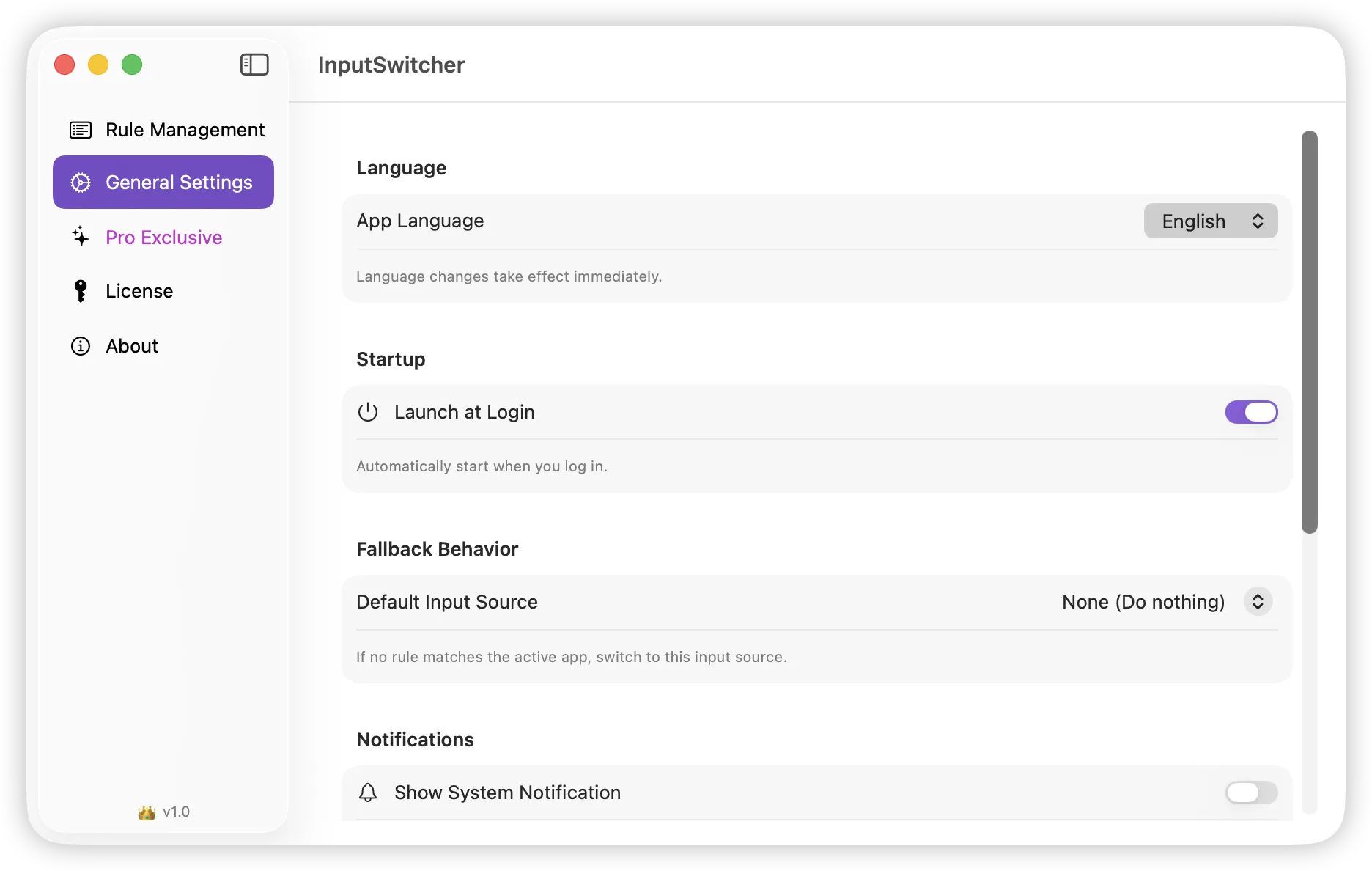
Launch at Login
Start automatically when you log in
Visual Indicator
See which input source is active with a floating indicator
Sound Effects
Subtle audio feedback when switching
Global Hotkey
Press ⌘⌥P to pause/resume switching
Menu Bar Flag
Show country flag for current language in menu bar
Import & Export
Backup and restore your rules as JSON
Real multilingual workflows
See how the app fits a real multilingual Mac setup
A buyer should be able to picture the exact rule set before downloading. The common pattern is simple: give each app context the input source it should open with.
Typical rule logic
One Mac, multiple language contexts, no manual shortcut loop
This is the buyer progression in practice: identify the apps where mistakes happen, assign the correct default input, then let InputSwitcher preserve the right state while you move through the day.
Coding apps
English / ABCVS Code, Cursor, Xcode, Terminal
Commands, code, filenames, and shortcuts stay predictable.
Communication apps
Your native languageSlack, Telegram, WeChat, Messages
Replies are ready in the language you actually use with people.
Research and writing apps
The language that matches the current taskBrowser, Notes, docs, translation tools
You keep momentum when switching between reading, drafting, and note capture.
Setup and troubleshooting
Confidence before expansionSystem Settings, InputSwitcher, support guide
A buyer who understands permissions and first-rule recovery is more likely to install now instead of bouncing.
Conversion guidance
If you already know your use case, here is the fastest path
I want to test it today
Go straight to the download page, install it, and create rules for the two or three apps where wrong-input friction costs you the most time.
Download InputSwitcher →I need to validate the feature set
Review the feature page if you care about pause controls, visual feedback, startup behavior, and portable rule management before deciding.
Review features →I am evaluating whether Pro is worth it
Open pricing to compare free versus Pro and decide whether the one-time purchase matches the friction you want to eliminate.
Check pricing →InputSwitcher vs Manual Switching
See how automatic input source switching compares to the manual approach you've been using.
| Aspect | Manual Switching | With InputSwitcher |
|---|---|---|
| Switching Method | Keyboard shortcut required | Fully automatic, instant |
| Setup Time | None | 5 minutes one-time setup |
| Daily Time Saved | 0 minutes | Varies by workflow |
| Wrong Language Errors | Repeated interruptions | Reduced by app rules |
| Mental Overhead | High (must remember to switch) | None (set and forget) |
| Context Awareness | None | App-specific rules |
Available in 10 Languages
InputSwitcher supports 10 languages to serve users worldwide
Frequently Asked Questions
Everything you need to know about automatic input source switching on macOS.
What is InputSwitcher and how does it work?
How do I automatically switch keyboard input on Mac?
Is InputSwitcher free to use?
Does InputSwitcher work with all input methods?
How is InputSwitcher different from macOS built-in input switching?
Can I temporarily disable automatic switching?
Does InputSwitcher slow down my Mac?
What macOS versions are supported?
Ready to remove input-source friction from your Mac workflow?
Start with the free download if you want to test it immediately, review features if you need deeper product confidence, or check pricing if you are already comparing free versus Pro.
Free download • One-time Pro upgrade available • macOS 14.0+